How it works
From signing up to a full library, step by step.
Most people are set up in about ten minutes. Here is everything that happens, in order, on the screens you will see. The last step is optional, for the PC you play on.
Create your account
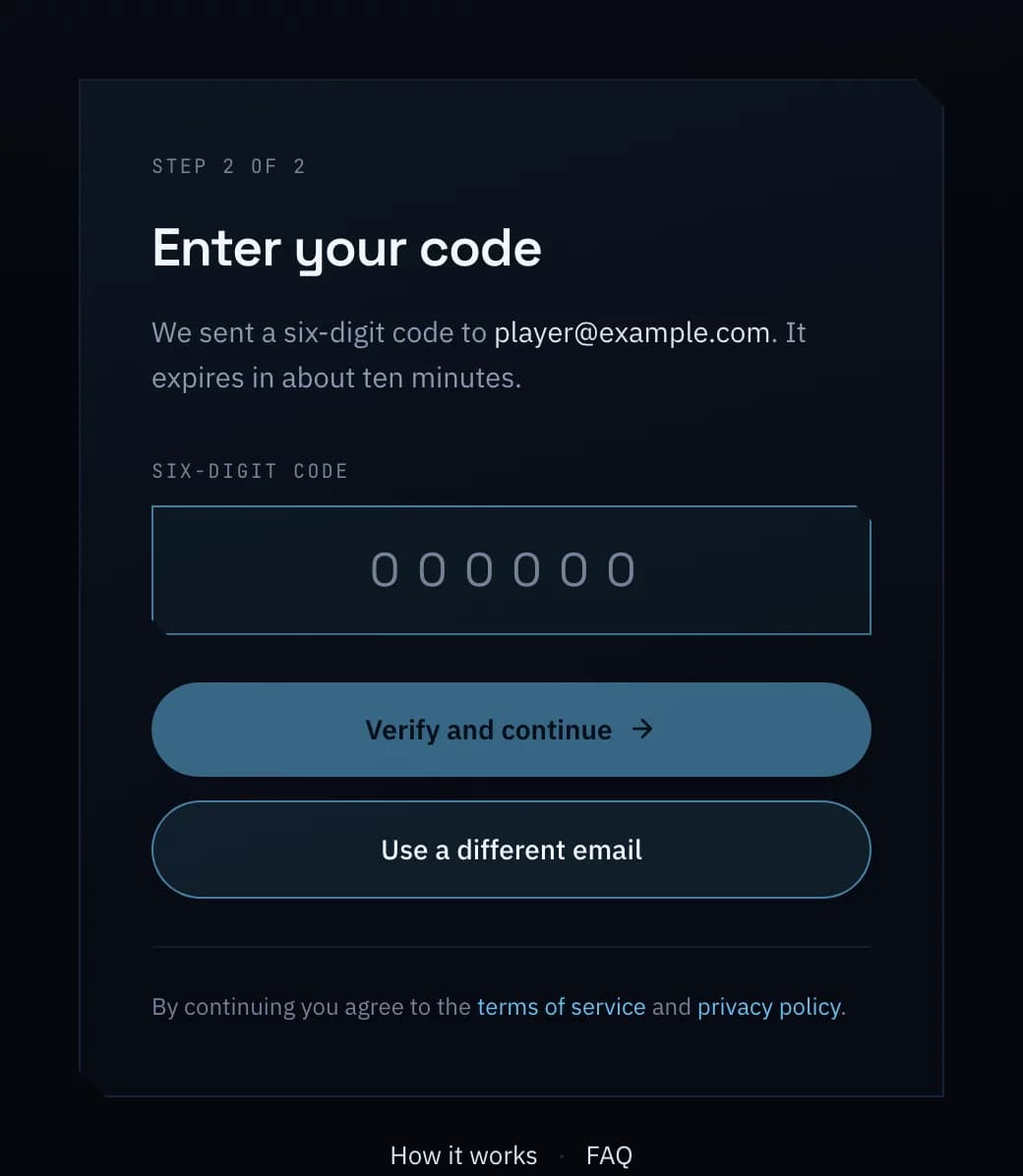
Enter your email address, and GameDock sends you a six-digit code. That code creates your account the first time you use it. Then you choose a username.
- No password to choose, forget or have stolen.
- Your email address stays private. Your username is the name on your account.
- Your library starts empty and stays that way until you connect a store.
Add GameDock Companion to Chrome
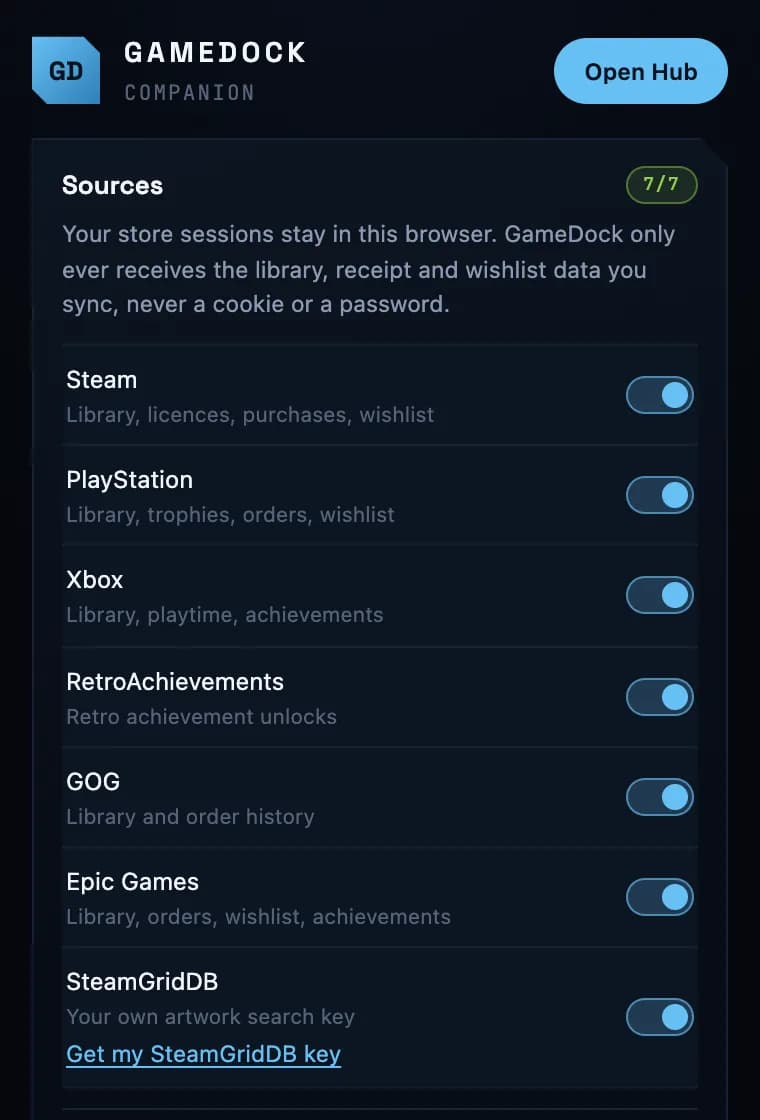
GameDock Companion is a small Chrome extension. It reads your games from the store websites you are already signed in to, so you never hand over a password, and your store sign-ins never leave your browser.
- Add it from the Chrome Web Store. Chrome keeps it up to date from then on.
- Switch on each store you use. The extension can see nothing until you do.
- It works with private profiles, because it reads your own signed-in session rather than your public page.
Press Sync
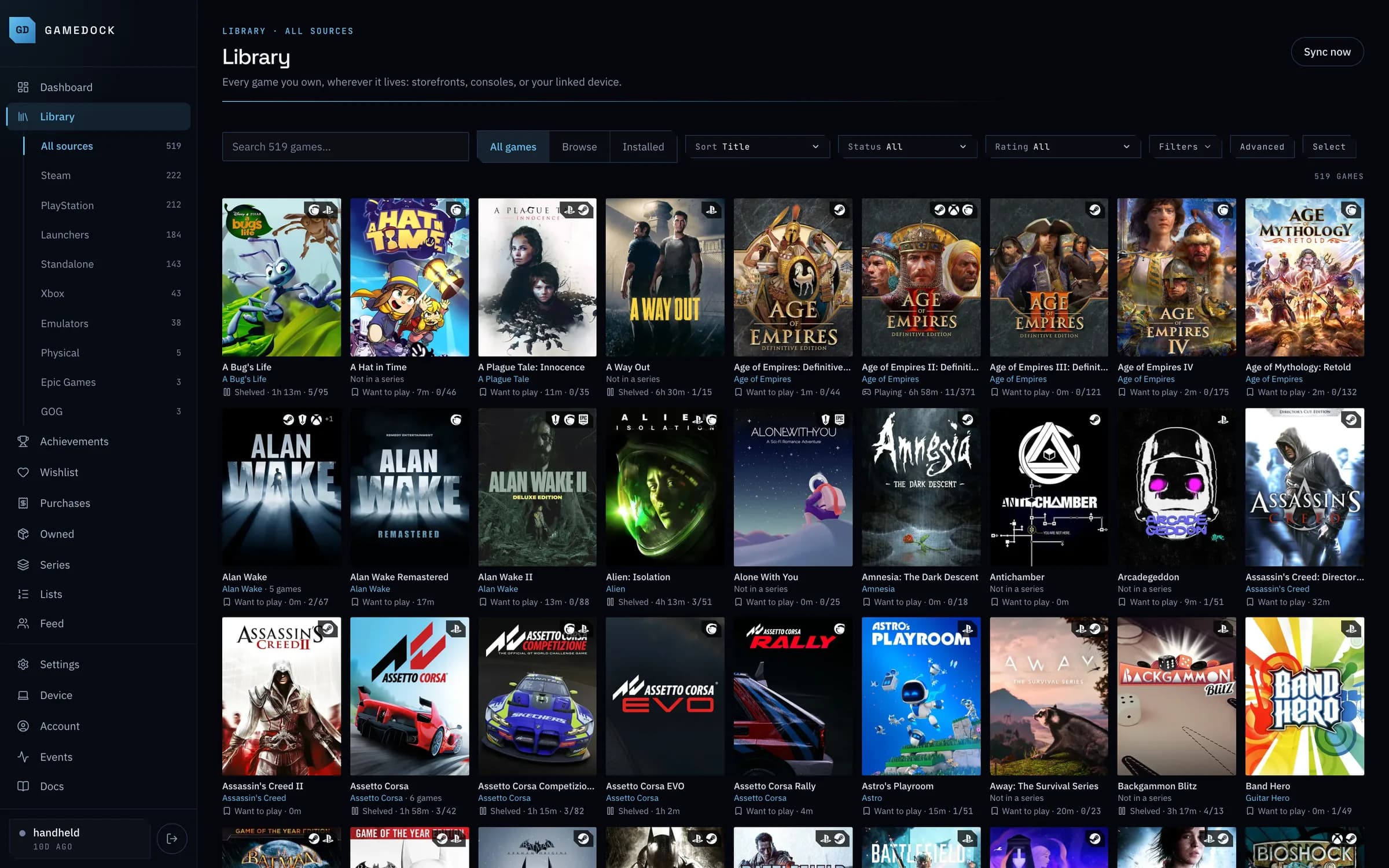
In Settings, press Refresh connections and GameDock links every store you are signed in to at once. Press Sync, and your games, playtime and achievements arrive. From then on, GameDock keeps them up to date on its own.
- Steam, PlayStation, Xbox, GOG, Epic Games and RetroAchievements each link in a step or two.
- Games you own on more than one platform become one entry, with their achievements merged.
- Add physical media yourself, by scanning a disc or cartridge's barcode with your phone.
Pair GameDock Helper on the PC you play on
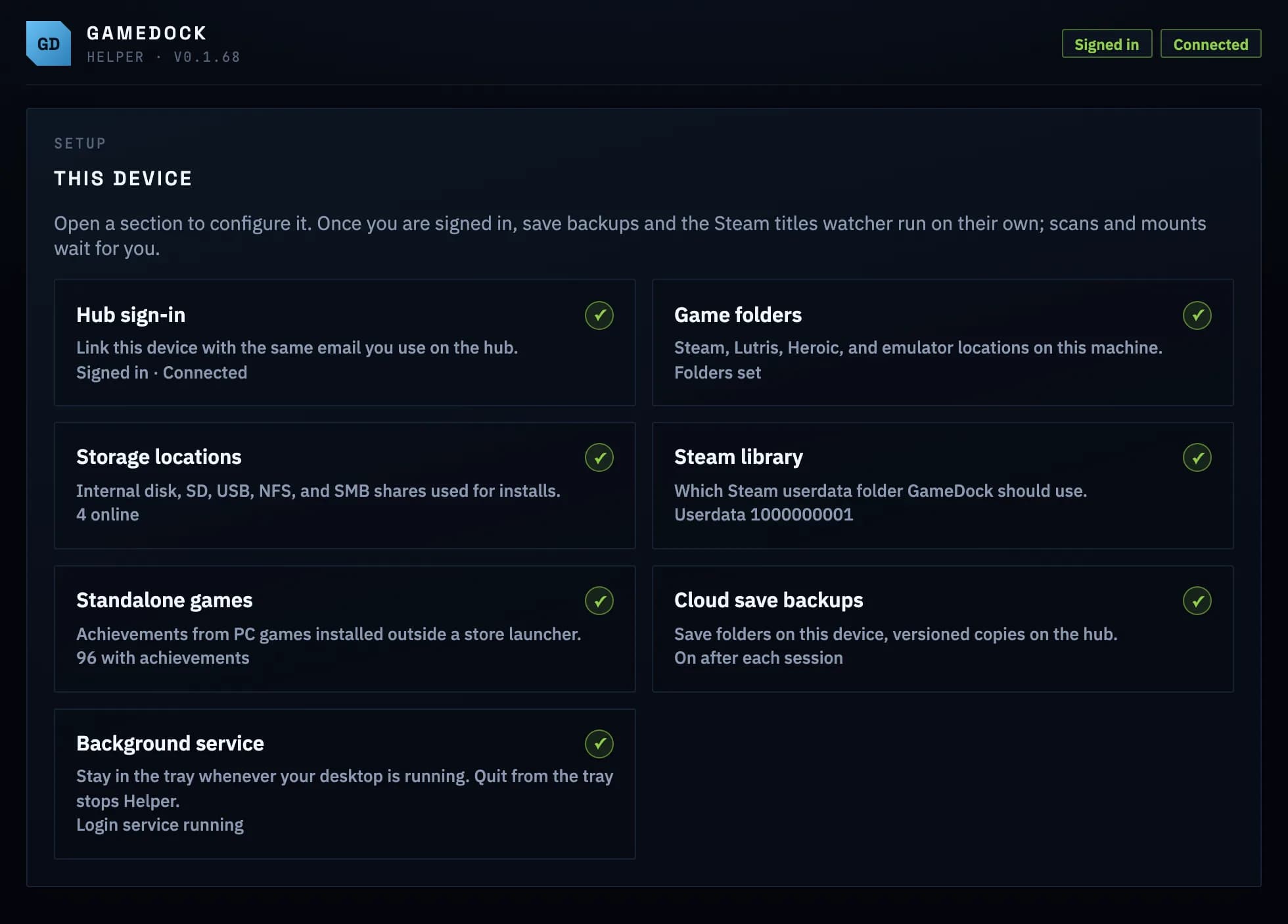
GameDock Helper is a small app for the desktop, laptop or handheld you play on. It shows GameDock what is actually installed there, including Lutris, Heroic, emulator and standalone PC games, how full each drive is, and your save files. It runs on Linux today; Windows is next on the roadmap, then macOS.
- Runs on any modern 64-bit Linux, on a desktop, a laptop or a handheld.
- Nothing is scanned until you ask. You choose every folder and drive.
- Everything else on GameDock works without it.
FlatpakBest on SteamOS, Bazzite and other systems where you install apps from a store.
AppImageRuns on any distribution without installing.
.debFor Debian and Ubuntu.
Version 0.1.68, for x86-64 LinuxGameDock Helper signs in to an account you already have. It never creates one.
After setup
It keeps itself up to date.
Once a store is connected, GameDock checks it on a schedule, so your library, achievements and prices stay current without you. You can also press Sync whenever you want the latest straight away.
A few things can only be read from your signed-in browser: what you paid on Steam, your Steam add-ons, achievements from a private Steam profile, and everything from Epic Games. Press Sync for them in Settings, or switch on the Companion’s background sync and it fetches them on a timer while Chrome is open.
The guide
Every step, with screenshots.
GameDock comes with a full guide: installing the Companion, connecting each store, setting up GameDock Helper, and everything you can do once your library is in. Read it inside GameDock, or download the whole thing now.
Download the guide (PDF)Step one takes about a minute.
Create your account now, and connect your stores whenever you are ready.
Still have questions? Read the FAQ.